Nmap Ncat
| Listen to the port | |
| Send messages | |
| File output | |
| Installation | |
| File exchange | |
| Common syntax | |
| Port scanning | |
| Port scanning at localhost | |
| Python + nc: port scanner | |
| Similar articles |
Listen to specific port
ncat -l -p 9150 -k
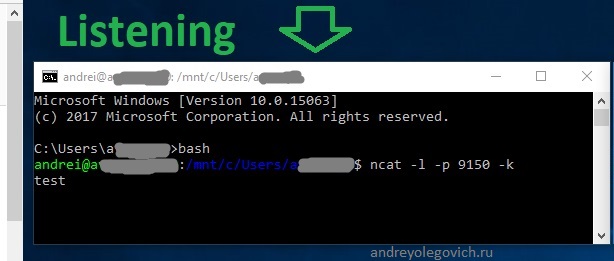
Send data
ncat 10.6.1.197 9150
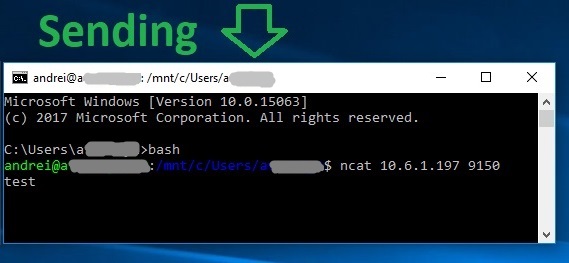
In this example, I listen and send on the same IP.
Output Netsat into a file
Netcat shares standard output (stream number 1) and standard error inference stderr (stream number 2) , so to combine all output into one file, add 2>&1 to the end of the command
netcat -z -vv domain 4845-4855 > openports.txt 2>&1
Installation
sudo apt -y install ncat
sudo yum -y install ncat
Sharing files with Netcat
To transfer a file from one computer to another.
On the receiving PC enter
nc -l -p port_number > file_name.extension
For example:
nc -l -p 9150 > settings.txt
Then on the sending PC.
nc -w 3 IP_address port_number < file_name.extension
For example:
nc -w 3 10.6.1.1 9150 settings.txt
Netcat
This guide is devoted to the work of the utility netcat. This peculiar «Swiss Army Knife» network tools can be Useful in monitoring, testing and transmitting data over network connections.
This guide uses the Ubuntu 12.04 server, but generally The netcat utility is available on almost any modern distribution. Ubuntu comes with BSD version of the utility, which will be used in this article. Other versions may work. or provide other options.
Common syntax
By default, netcat works by initiating a TCP connection with a remote host.
Basic syntax:
netcat [options] host port
This command initiates a TCP connection to the host via a specified port.
Basically, it functions similarly to the old Linux command — telnet.
Keep in mind that your connection will be installed unencrypted.
In order to send a UDP packet instead of establishing a TCP connection, Use the -u option:
netcat -u host port
To specify the range of ports, specify the first and last port of the range in dash:
netcat host first_port-last_port
This command is usually used with additional flags.
Most systems can use netcat or nc. They are interchangeable because They are pseudonyms for one command.
Using Netcat to scan ports
Most often, netcat is used as a port scanner.
Although Netcat is probably not the smartest tool to do that. (In most cases, it is more suitable for nmap) Simple port scanning to quickly identify open ports.
To do this, specify the range of ports to scan (as shown above). Use the -z option, which performs scanning instead of establishing connections.
For example, to scan all ports to port 1000, do:
netcat -z -v domain.com 1-1000
Scan all ports from port 4847 to port 4899 result in the port.txt file
nc -z -v domain.com 4847-4899 > ports.txt 2>&1
As you can see, in addition to the -z option, this command uses the -v option, thanks to which netcat provides more detailed information.
The result is as follows:
nc: connect to domain.com port 1 (tcp) failed: Connection refused
nc: connect to domain.com port 2 (tcp) failed: Connection refused
nc: connect to domain.com port 3 (tcp) failed: Connection refused
nc: connect to domain.com port 4 (tcp) failed: Connection refused
nc: connect to domain.com port 5 (tcp) failed: Connection refused
nc: connect to domain.com port 6 (tcp) failed: Connection refused
nc: connect to domain.com port 7 (tcp) failed: Connection refused
…
Connection to domain.com 22 port [tcp/ssh] succeeded!
…
As you can see, this command outputs a fairly detailed result, and also tells you if there was a scan. Each port is successful or not.
This is convenient when using a domain name.
However, specifying the desired IP addresses can significantly speed up the scan. You can then use the -n flag to indicate that you do not need to resolve an IP address using the DNS:
netcat -z -n -v 111.111.111.111 1-1000
Returned messages are sent to the standard error stream. Standard errors can be reported send to the standard output to filter the results.
To redirect the standard error to the standard output, bash syntax 2>1 is used; The results are filtered using grep:
netcat -z -n -v 111.111.111.111 1-1000 2>&1 | grep succeeded
Connection to 111.111.111.111 22 port [tcp/*] succeeded!
So now you can see that the only open port on the remote machine in the range of 1-1000 — is port 22, the standard SSH port.
Scan ports 4847-4899 and save only successful results to openports.txt
nc -z -v aredel.com 4847-4899 2>&1 | grep succeeded > openports.txt
Port scanning at localhost
To scan open ports on a local machine
sudo nmap -sS localhost
Starting Nmap 6.40 ( http://nmap.org ) at 2026-10-23 00:01 EEST Nmap scan report for localhost (127.0.0.1) Host is up (0.000028s latency). Other addresses for localhost (not scanned): 127.0.0.1 Not shown: 991 closed ports PORT STATE SERVICE 22/tcp open ssh 25/tcp open smtp 53/tcp open domain 111/tcp open rpcbind 631/tcp open ipp 3389/tcp open ms-wbt-server 5907/tcp open unknown 6007/tcp open X11:7 10000/tcp open snet-sensor-mgmt Nmap done: 1 IP address (1 host up) scanned in 1.69 seconds
These ports can be closed by Firewall
Other types of scanning can be studied by performing
nmap --help
SCAN TECHNIQUES:
-sS/sT/sA/sW/sM: TCP SYN/Connect()/ACK/Window/Maimon scans
Python + nc: port scanner
The simplest port scanner to use n
Python
To execute command nc
module
subprocess
Used for port search
cycle for
Recording in the file is done using
context manager with
#!/usr/bin/python
import subprocess
HOST_IP = "192.168.56.138"
START_PORT = 18079
END_PORT = 18083
for ip in range(START_PORT, END_PORT):
ipstr = str(ip)
    result = subprocess.run(["nc",
     "-z",
     HOST_IP,
     ipstr])
if result.returncode == 0:
with open("open_ports.txt", "a") as f:
f.write(f"{ipstr}\n")
Communication with netcat
The netcat command is not limited to sending TCP and UDP packets. She can also tap the port.
on connections and packets, which makes it possible to connect two instances of netcat in relation to
« client-server »
Which computer is the server and which is the client —
matters only during
the initial setup.
Once the connection is established, the connection is the same in both directions.
On one machine you need to tell netcat to listen to a specific port on the connection. It's
This is done with -l, followed by the port number:
netcat -l 4444
After executing this command, netcat listens to TCP connections on port 4444. Ordinary. The user (not root) will not be able to open any ports up to 1000 (for server security).
On the second server, you need to connect to the first machine through the specified port. It's done. As previously shown:
netcat domain.com 4444
Once the connection is established, it may seem that nothing has happened. But now we can. Send messages on both sides of the connection and they will be visible on both servers.
Enter the message and press ENTER. The message will appear on both local and remote server. It works in the opposite direction.
After completing the message transfer, press CTRL-D to interrupt the TCP connection.
Sharing files with netcat
Having familiarized with the main functions of the utility and following the previous examples, you can Move to more complex tasks.
As already mentioned, the netcat utility creates TCP connections with which you can transmit almost any kind of information, not limited to user-typed messages. This knowledge It can be used to turn netcat into a file transfer program.
Again, you need to choose one machine to listen to the connections. But instead, To print information on the screen (as in the previous example), netcat will place all the information directly into the file:
netcat -l 4444 > received_file
On the second computer, you need to create a simple text file:
echo "Hello, this is a file" > original_file
You can now use this file as input to create a connection. with a listening computer. The file will be transmitted as if it were typed interactively:
netcat domain.com 4444 < original_file
As you can see, the computer that was waiting for the connection now has a new file with the name «received_file», containing data entered on the other computer:
cat received_file
Hello, this is a file
As you can see, such connections can be easily used to transmit any kind of information.
For example, you can transfer the contents of an entire directory; to do this, create an unnamed one. Tarball, transfer it to a remote system and unpack it in a remote directory.
On the receiving side, the following command can be used to warn you that What you need to get and unpack the file:
netcat -l 4444 | tar xzvf -
A dash at the end of commands means that the tarball will work on a standard input that It is currently transmitted over the network if the connection is established.
On the side containing the directory to be transferred, pack this directory into archive and then send it to a remote computer using netcat:
tar -czf - * | netcat domain.com 4444
This time the dash in command tar means that the contents of the current directory (as indicated) the symbol *) must be archived and transmitted, and then write the result in a standard output.
This is then recorded in the TCP connection, transmitted to the other side of the connection and Unpacked into the current directory of the remote computer.
This is just one example of transferring more complex data from one computer to another. Also often used command dd, which creates an image of the disk on one side and transmits it to the remote computer. However, this approach is not covered by this guidance.

Netcat as a simple web server
The netcat utility has already been used to transfer messages and files.
The same approach
Use netcat as a simple web server. This can be useful for testing finished pages.
First, we need to create HTML - file on one server:
touch index.html
vi index.html
The following simple code can be placed in this file:
<html>
<head>
<title>Test Page</title>
</head>
<body>
<h1>Level 1 header</h1>
<h2>Subheading</h2>
<p>Normal text here</p>
</body>
</html>
Save and close the file.
This file cannot be served on the default web server port (80) without root privileges. As a normal user, set port 8888.
To test one page and check how it appears, type something like:
netcat -l 8888 < index.html
Now the content can be viewed in the browser by visiting:
http://IP server:8888
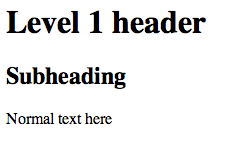
This command will display the page, after which the netcat connection will close. Attempting Update the page, it will disappear.
Netcat may serve the page indefinitely; You need to make the last command cyclical using the line:
while true; do nc -l 8888 < index.html; done
Then the page will continue to receive connections after the first connection. was terminated.
To stop the cycle, dial CTRL-C.
This server will allow you to see how the page is displayed in the browser, but does not provide a wider functionality. Never use such a web server to serve real sites: it is not secure. Besides, such Simple things like links don’t always work right.
Outcomes
This guide introduces the basic functions and use of netcat. Since this tool is universal, it can be used to Diagnosing problems and testing the basic functionality of TCP/UDP connections.
In addition, netcat allows you to communicate and exchange information between different computers. This is very important for quick user interaction. Simplifying connection creation, netcat utility trying to network Computer interactions are more convenient, quick and understandable.
Article author: Andrei Olegovich